
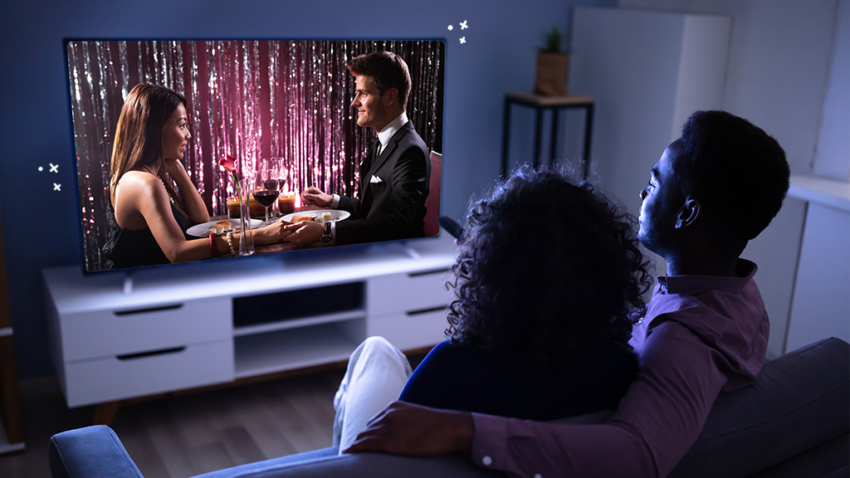
Smart televisions give American households direct access to movies, television programs, sports, music, games, and streaming applications. However, a new television does not always provide the best picture or sound immediately after setup.
Factory settings are often designed to attract attention in bright retail stores. Extremely strong colors, excessive sharpness, bright picture modes, and aggressive motion effects may look impressive during a demonstration but appear unnatural at home.
Streaming quality also depends on internet performance, application settings, subscription plans, television capabilities, and room lighting.
A few careful adjustments can improve clarity, reduce eye strain, and create a more comfortable viewing experience without purchasing new equipment.
Start With the Correct Picture Mode
Most smart televisions provide several picture modes.
Common options may include Standard, Movie, Cinema, Sports, Game, Dynamic, or Vivid.
Dynamic modes often increase brightness and color intensity.
These settings may look harsh in a normal living room.
Movie or Cinema modes are often designed for more natural viewing.
However, personal preference and room lighting matter.
Test several modes using familiar content.
Avoid changing many advanced settings immediately.
Beginning with a suitable preset can solve most picture concerns.
Adjust Brightness for the Room
The best screen brightness depends on surrounding light.
A bright room during the day may require a stronger setting.
A dark room at night usually needs less brightness.
Excessive screen brightness can create eye discomfort.
Very low brightness may hide detail.
Some televisions include automatic light adjustment.
This feature can be convenient, but users should test whether it changes the picture too aggressively.
Families planning home entertainment technology projects can improve viewing by considering curtains, lamps, screen location, and natural light together.
Reduce Excessive Sharpness
Many televisions use high sharpness settings by default.
Excessive sharpness may create artificial outlines around people and objects.
The image can appear processed rather than clear.
Try lowering the control gradually.
True detail comes from the source quality and display resolution.
Adding artificial edges does not create missing information.
View text, faces, and natural scenery while adjusting.
The correct level should appear clean without obvious glowing outlines.
Review Color Settings
Strong color may attract attention but reduce realism.
Skin tones are useful for testing.
People should not appear unnaturally orange, red, or pale.
Avoid changing individual color controls without a clear reason.
A balanced picture mode may already provide good results.
Color temperature also affects appearance.
Warm settings may initially look slightly yellow to users accustomed to cooler displays.
After a short adjustment period, warmer settings may appear more natural for movies.
Turn Off Unnecessary Motion Smoothing
Motion smoothing creates additional frames to make movement appear smoother.
Some viewers like the effect for sports.
Others feel it makes movies look artificial.
The feature may be called Motion Enhancement, Auto Motion, or another manufacturer-specific name.
Try turning it off during films and scripted television.
Use a lower setting for sports if desired.
Personal preference matters.
The goal is comfortable viewing rather than following one universal setting.
Advice from home theater and technology professionals may help households adjust displays for specific rooms and entertainment systems.
Choose the Correct Streaming Quality
Streaming applications may adjust picture quality automatically.
Some allow users to select data use or resolution.
High-quality streaming requires enough internet speed.
Subscription plans may limit access to certain resolutions.
Paying for ultra-high-definition service provides little benefit when the television or plan does not support it.
Check application account settings.
Review playback quality.
Households with internet data limits should understand how higher resolutions affect usage.
Check Internet Performance Near the Television
Slow internet may reduce picture quality or cause buffering.
Test connection speed at the television location.
A strong result beside the router does not guarantee good performance in another room.
Walls, distance, furniture, and interference can weaken WiFi.
Moving the router may help.
A wired Ethernet connection can provide more consistent performance when available.
Mesh WiFi may improve coverage in larger homes.
Do not purchase a faster internet plan before checking local network conditions.
Update Television Software
Smart television updates may improve application compatibility, security, and performance.
Open the settings menu and check for updates.
Some televisions update automatically.
Others require approval.
Allow enough time for installation.
Do not disconnect power during an update.
Older televisions may eventually stop receiving support.
External streaming devices can sometimes extend access to newer applications.
Families creating modern home entertainment improvements should include software support when comparing televisions.
Update Streaming Applications
Applications also receive updates.
An outdated service may load slowly, freeze, or display errors.
Check the television application store.
Remove unused applications.
Too many installed services may create a cluttered menu.
Restart the television after major updates.
Sign out and sign back in when an application behaves incorrectly.
Avoid deleting account information unless login details are available.
Use the Correct HDMI Input Settings
External streaming devices, game systems, and media players may require specific HDMI settings.
Some televisions use enhanced input modes for higher resolutions or advanced color formats.
Check device instructions.
The correct cable may also be required.
An older cable can limit performance.
Avoid purchasing expensive accessories without confirming actual technical needs.
Label inputs clearly.
Names such as “Game Console” or “Streaming Device” make daily use easier.
Adjust Sound for Clear Dialogue
Television speakers may struggle with dialogue.
Sound modes can affect clarity.
Try Standard, Movie, Speech, or Clear Voice settings.
Reduce excessive bass when voices become difficult to understand.
Some televisions include dialogue enhancement.
Test using familiar programs.
Volume should not require constant adjustment between conversations and action scenes.
A soundbar may help, but settings should be reviewed before buying new equipment.
Turn Off Unwanted Energy-Saving Changes
Energy-saving modes can reduce electricity use.
They may also dim the picture more than expected.
Review eco settings when the screen changes brightness unexpectedly.
Choose a balance between comfort and energy use.
Automatic screen dimming may work well in some rooms.
In others, it can make dark scenes difficult to view.
Understand each setting before disabling energy features completely.
Enable Game Mode for Gaming
Game Mode reduces processing that may delay controller response.
It can improve performance for console gaming.
Picture appearance may change.
Some advanced effects may be disabled.
Use the mode for game systems rather than all entertainment.
Newer televisions may switch automatically.
Confirm that the correct input is selected.
Competitive players may notice the largest benefit.
Casual players may still appreciate faster response.
Review Privacy Settings
Smart televisions may collect viewing activity, voice information, application usage, and advertising data.
Review privacy choices during setup.
Users can often limit personalized advertising or content recognition.
Turn off features that are not needed.
Voice controls may require additional permissions.
Use strong account passwords.
Remove old users before selling the television.
Privacy settings may change after updates, so review them periodically.
Organize the Home Screen
A crowded television menu can make streaming slower to navigate.
Place frequently used applications first.
Remove services that are no longer used.
Sign out of old accounts.
Turn off unnecessary recommendations when options are available.
Separate adult and child profiles.
A clean home screen reduces search time.
Family members can find content more easily.
Use Parental Controls
Smart televisions may provide age restrictions, purchase controls, application locks, and profile settings.
Parents should test these features.
Set a purchase code.
Avoid leaving payment approval open.
Streaming platforms may require separate parental controls.
Television settings do not always control every application.
Children should understand household viewing rules.
Technology controls support guidance but do not replace discussion.
Control Screen Glare
Reflections can reduce picture quality.
Avoid placing the television directly opposite bright windows.
Curtains or shades may help.
Position lamps away from the screen.
Soft lighting behind or beside the television can reduce eye strain.
Do not watch in complete darkness for long periods when it creates discomfort.
Readers exploring practical living room and media design ideas can improve viewing through furniture placement and lighting before upgrading equipment.
Restart the Television Occasionally
Smart televisions operate like computers.
Applications and background processes may create temporary problems.
A full restart can improve performance.
Turning the screen off with the remote may place it in standby rather than fully restarting.
Use the system restart option when available.
Unplugging should follow manufacturer guidance.
Frequent problems may indicate outdated software, limited storage, or failing hardware.
Check Subscription Plans
Streaming quality may depend on the selected plan.
Some lower-priced plans limit resolution.
Others include advertisements.
Review account details.
Do not assume the television is causing poor quality before checking the service.
Compare costs.
An expensive premium plan may not provide visible improvement on every screen.
Choose the level that matches the household’s equipment and viewing habits.
Avoid Changing Every Advanced Setting
Advanced menus can include color calibration, white balance, contrast controls, and processing options.
Incorrect changes may reduce picture quality.
Use simple adjustments first.
Record original values.
Reset the picture mode when results become confusing.
Professional calibration may be useful for high-end systems, but many families can achieve good results with basic settings.
Create Separate Modes for Different Activities
One picture setting may not work for every activity.
Movies, sports, daytime television, and gaming have different needs.
Save separate modes when the television allows it.
Use a brighter setting during the day.
Select a natural movie mode at night.
Activate Game Mode for consoles.
This approach provides flexibility without constant adjustment.
Improve the System Before Replacing the Television
Poor streaming quality does not always mean the television is outdated.
Check picture mode.
Update software.
Review application settings.
Test internet performance.
Adjust lighting.
Confirm subscription quality.
A few changes may create a noticeable improvement.
The best television setup combines balanced picture settings, dependable internet, clear sound, and comfortable room conditions.
Technology should support entertainment without requiring constant troubleshooting.
A carefully adjusted smart television can provide years of enjoyable family viewing without unnecessary upgrades.